
The Advanced Search lets you search for the entities in the Fabric-enabled LogPoint instances based on two criteria:
Machine Criteria
Configuration Criteria
Use the Machine Criteria to search for the LogPoint instances and the Configuration Criteria to search for the entities created in the LogPoint instances.
All the entities with the same configuration and compatible LogPoint versions are grouped together in the search result. You can modify identical entities of same entity type in multiple LogPoint instances at once. You can add or remove LogPoint machines with identical entities from the Selected Machines section from the Edit page if you need to update in specific LogPoint machines only.
The Advanced Search uses entity, criteria, and operators to enhance the search result.

Advanced Search - Entity
Select the Entity that you want to modify or view. The Advanced Search uses the selected entity as the base on which it carries out the entire search. You can search for the attributes of an entity based on other entities that are directly associated with it.
The Advanced Search consists of Machine Criteria and Configuration Criteria. Both the criteria are independent of each other.

Advanced Search - Criteria
Use the Machine Criteria to filter LogPoints based on the entity details.
The Entities, Built-in Collectors/Fetchers, and System actions take place on LogPoint. Thus, the Advanced Search in the Configure section filters machines using Machine Criteria only.
Use the Configuration Criteria to filter entities based on the entity details.
Note
You can use the Configuration Criteria to filter entities with the help of other entities that are directly associated with it. You can use this criteria with Machine Criteria.
Example: You can use a processing policy to combine a normalization policy, a routing policy, and an enrichment policy; and therefore, you can search for a particular processing policy from the processing policy, the normalization policy, the routing policy, and the enrichment policy that are associated with it.
Refer to Using Machine Criteria and Configuration Criteria section for details on how to use both the criteria together.
The Advanced Search uses the is equal to, like, exists, and in operators.
is equal to
Use the is equal to operator to list all the entities that have the exact value as the value entered in its field.
Example: The result lists all the Devices that have their logpoint name equal to LogPoint222.

Advanced Search - is equal to Operator
like
Use the like operator to list all the entities that have values containing the value entered in the field.
Example: The result lists all the Devices that have 221 in their logpoint name.
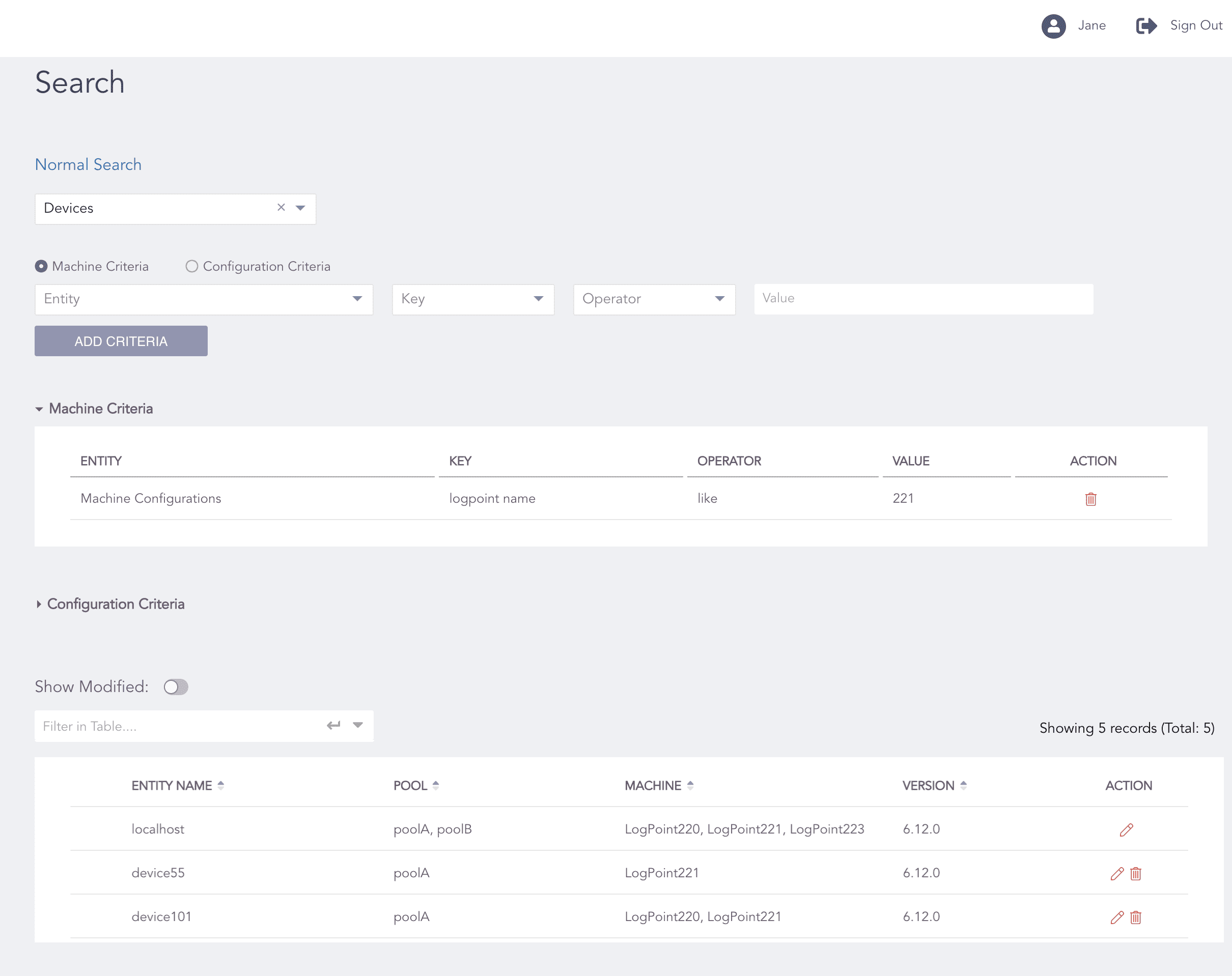
Advanced Search - like Operator
Note
If the Value field is empty, the like operator returns all the entities selected.
exists
Use the exists operator to list all the entities where the selected entity exists.
Example: The result lists all the Devices where any FTP Fetcher exists.
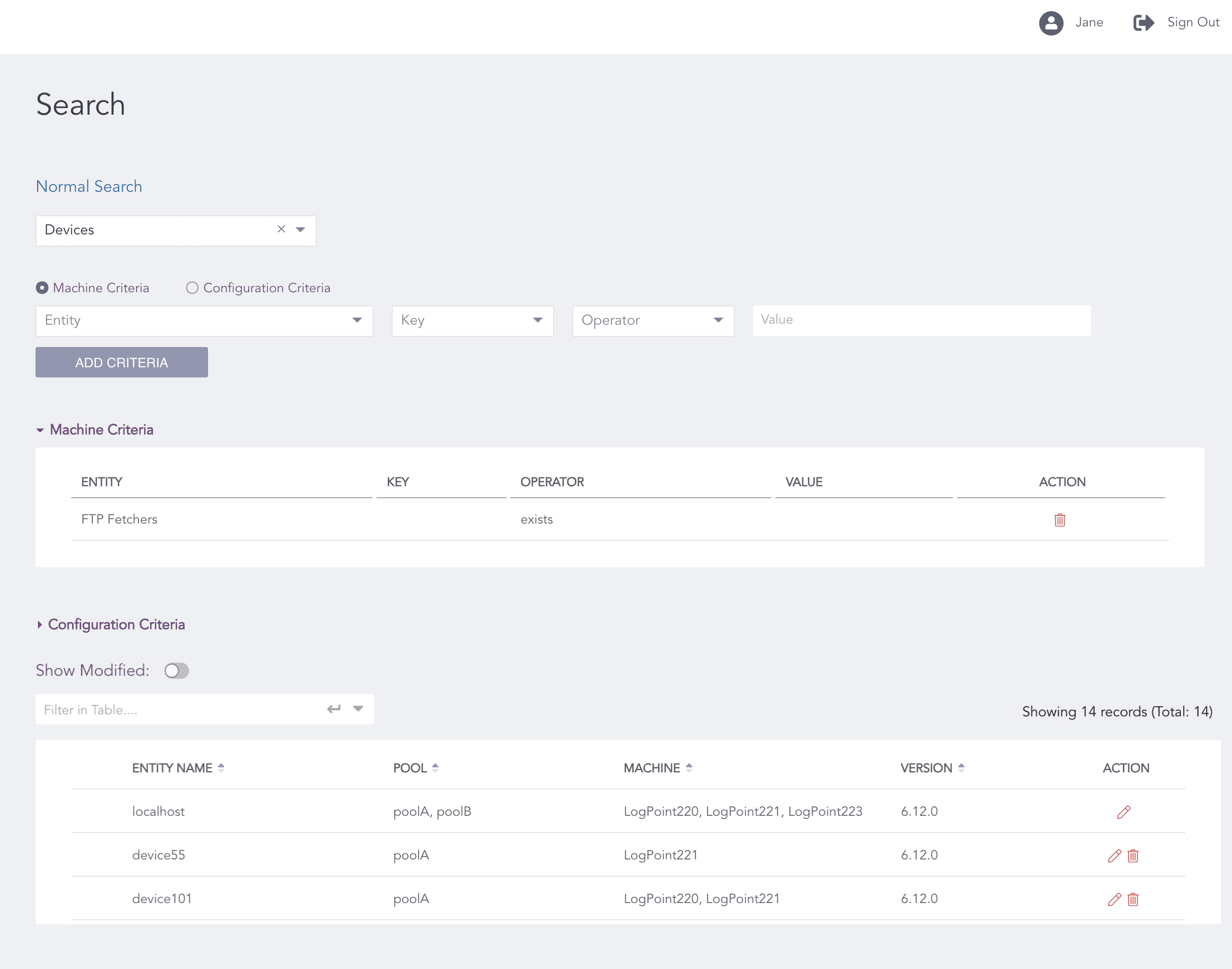
Advanced Search - exists Operator
in
Use the in operator to list the entities that have either one of the values entered. The in operator is the only operator that accepts multiple values in the Value field.
Example: The result lists all the Devices that belong in LogPoint220, LogPoint202, or LogPoint203.
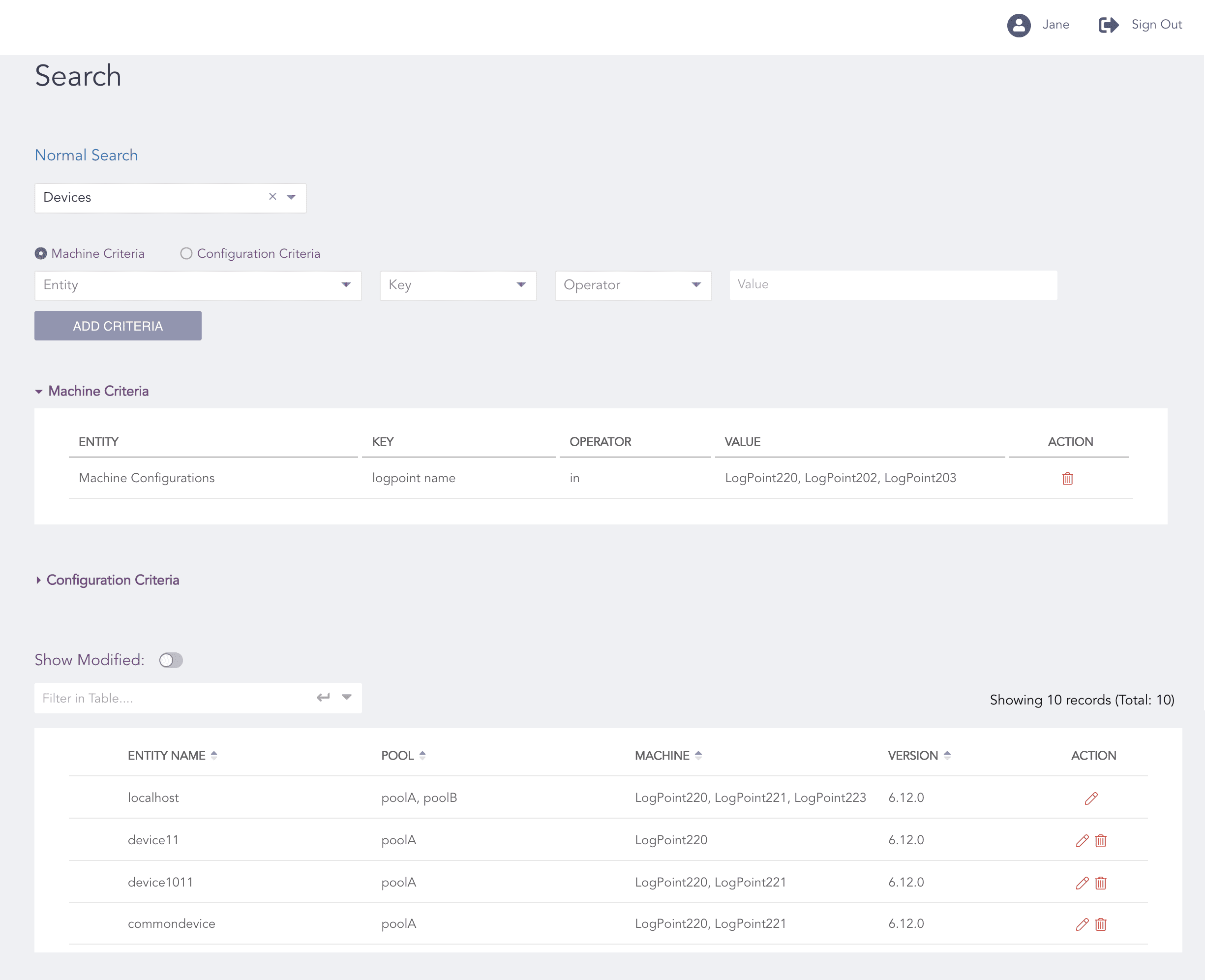
Advanced Search - in Operator
Click Search from the left navigation bar.
Click Advanced Search.
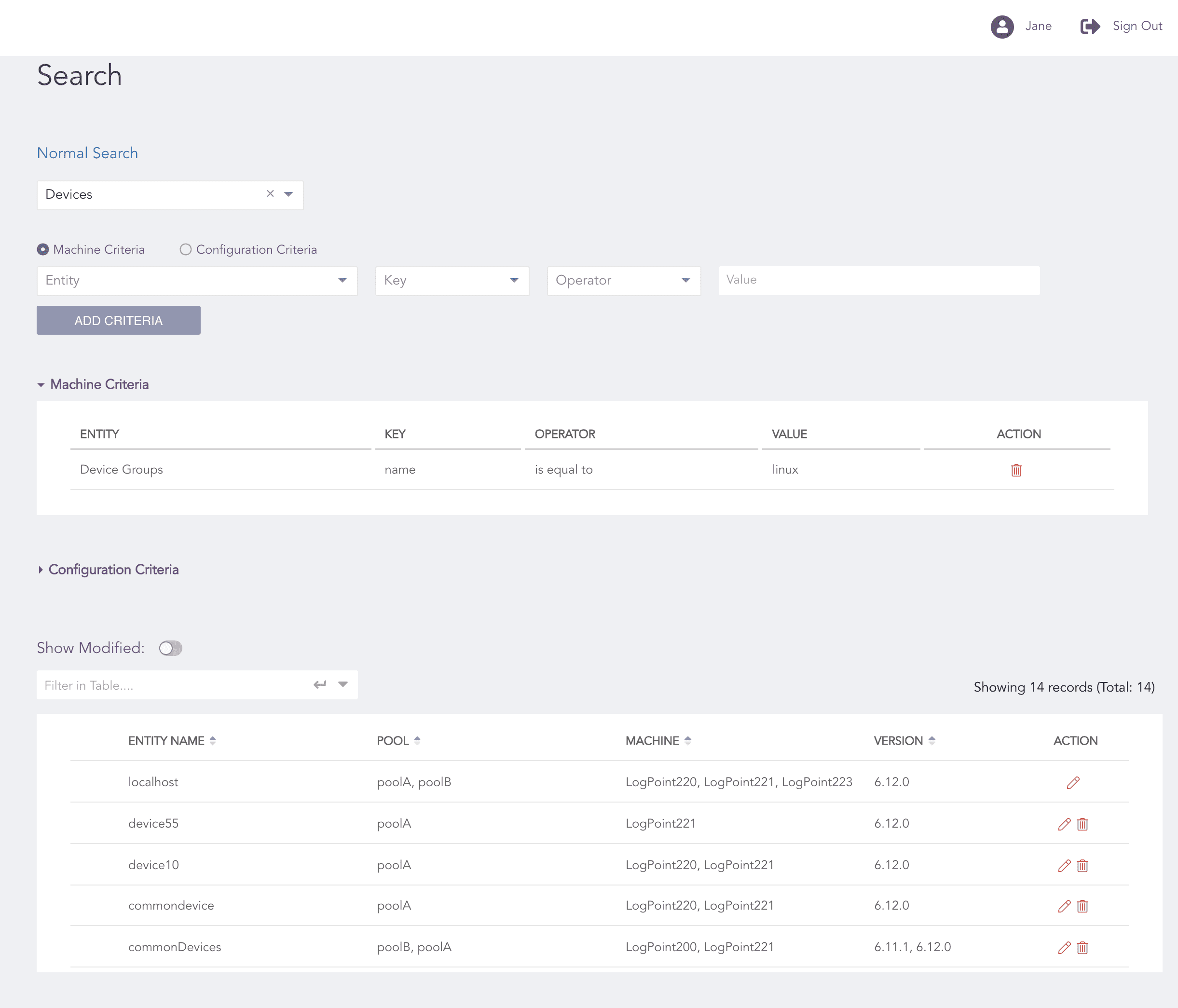
Advanced Search Using Machine Criteria
Select an Entity.
Select Machine Criteria as the Search Criteria.
Select another Entity.
Enter Key, Operator, and Value for the entity.
Click Add Criteria. You can add multiple Machine Criteria.
Click Search from the left navigation bar.
Click Advanced Search.
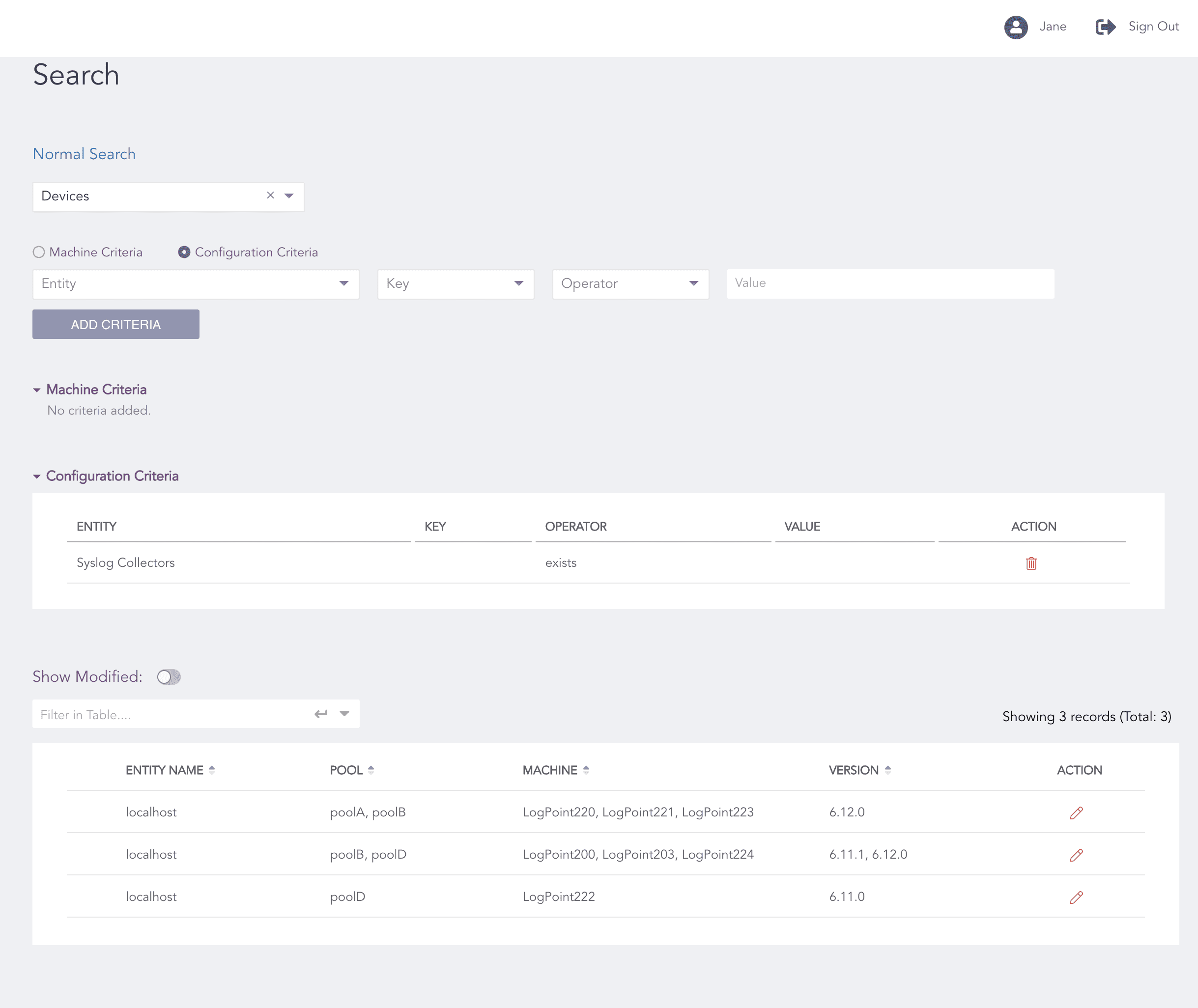
Advanced Search Using Configuration Criteria
Select an Entity.
Select Configuration Criteria as the Search Criteria.
Select another Entity.
Note
Based on the first entity selected, you can only select entities that are directly associated with it.
Enter Key, Operator, and Value for the entity.
Click Add Criteria. You can add multiple Configuration Criteria.
You can additionally use the Advanced Search with both the Machine Criteria and the Configuration Criteria.
Click Search from the left navigation bar.
Click Advanced Search.
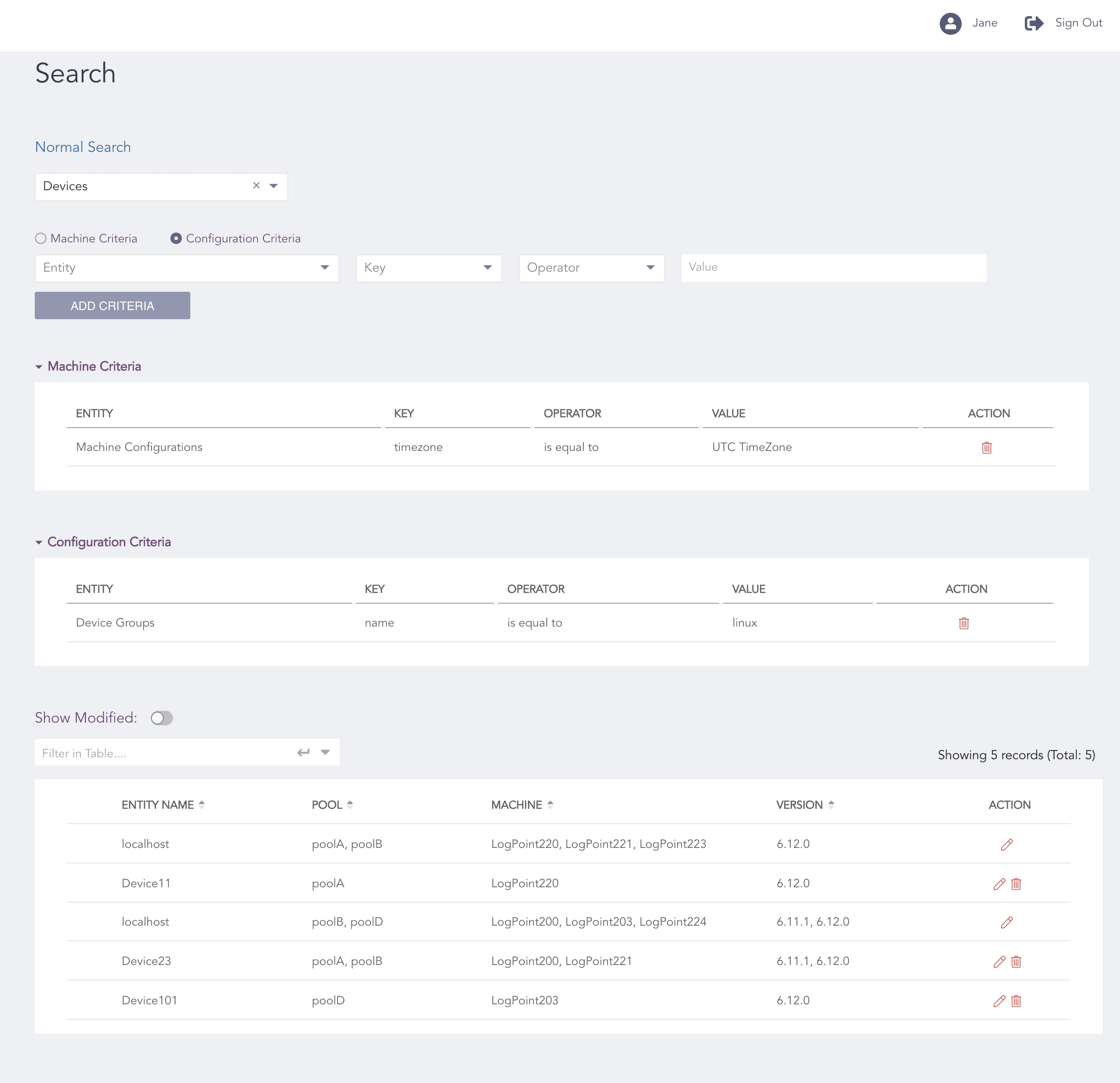
Advanced Search Using Machine Criteria and Configuration Criteria
Select an Entity.
Select Machine Criteria as the Search Criteria.
Select another Entity.
Enter Key, Operator, and Value for the entity.
Click Add Criteria.
Select Configuration Criteria as the next Search Criteria.
Select another Entity.
Enter Key, Operator, and Value for the entity.
Click Add Criteria. You can add multiple criteria.
In the Configure page, the Advanced Search lets you use the Machine Criteria only to carry out your searches. You can find the Advanced Search in the Entities, Built-in Collectors/Fetchers, and Settings sections of the Configure page.
Click Configure from the left navigation bar.
Select an Entity, a Built-in Collector/Fetcher, or a Setting.
Click Advanced Search.
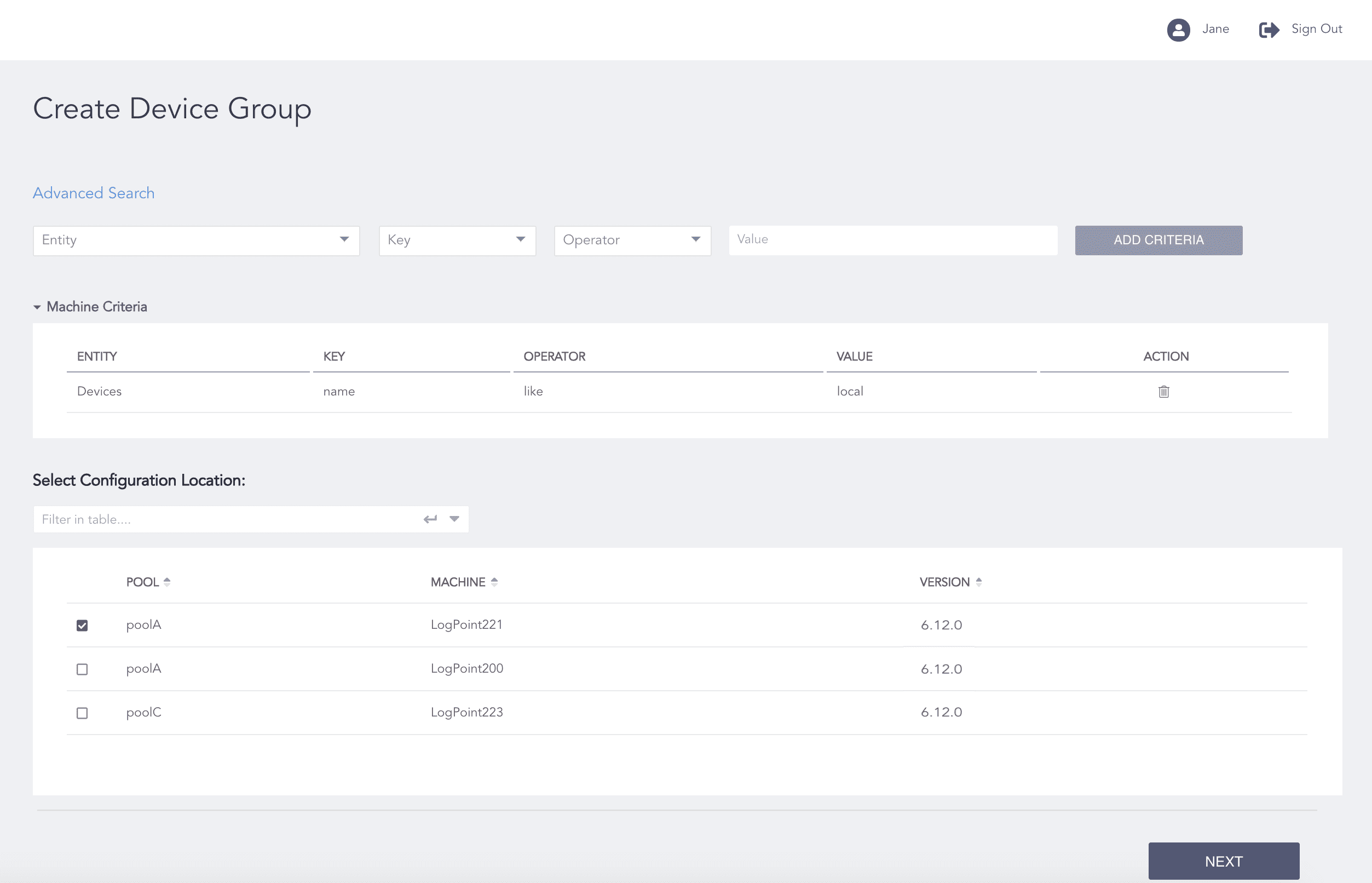
Advanced Search in Create Device Group of Configure Page
Select an Entity.
Note
Machine Criteria is the default Search Criteria used.
Select Key, Operator, and Value for the entity.
Select the LogPoint instances from Select Configuration Location. You can select multiple LogPoint instances of different pools.
Click Next.
Note
Refer to the Configuring Entities and Configuring System Settings section for details on how to configure entities, and system settings.